If an employee cannot access their Zoho People account, first check whether they have been added as a User, whether their account is confirmed, and whether their login access is enabled.
In Zoho People, Users have login access, while Employee Profiles do not have login access.
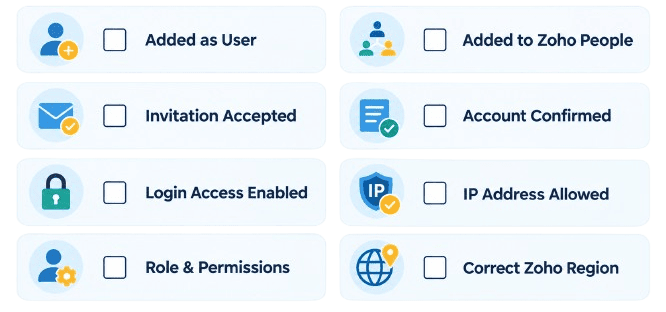
Quick Troubleshooting Checklist
1. Is the employee added as a User?
2. Has the employee been added to the Zoho People organization?
3. Has the invitation been accepted?
4. Is the account confirmed?
5. Is Login Access enabled?
6. Is the employee's IP address restricted?
7. Does the employee have the required role and permissions?
8. Does the employee have an account in another Zoho region?
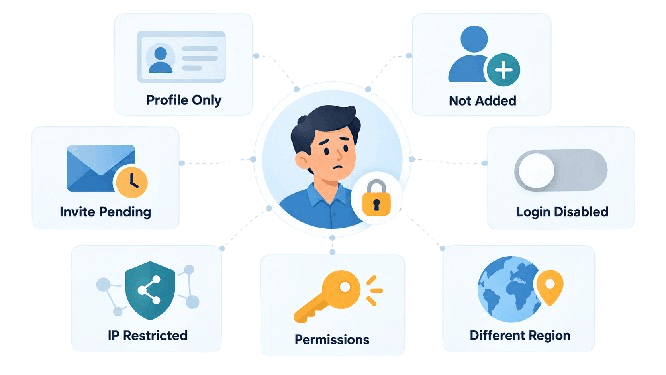
1. The Employee Was Added as an Employee Profile
Employee Profiles are designed for employees who do not have login access to Zoho People. Users, on the other hand, can log in and access Zoho People.
Fix: Check whether the employee exists under Users rather than only under Employee Profiles.
2. The Employee Has Not Been Added to Zoho People
An employee can belong to the organization's Zoho account but still not have access to the Zoho People organization.
If the employee receives the message “Your organizational account already exists,” Zoho says this can happen when the employee has not been added to the Zoho People account.
Fix: The administrator needs to add the employee to the Zoho People account.
3. The Employee Has Not Accepted the Invitation
When a user is added through an invitation, the employee needs to accept the invitation to gain access to Zoho People.
Zoho also states that an unconfirmed account can occur when verification is still pending. The invitation link has a 7-day validity period.
Fix: Check whether the employee has received and accepted the invitation. If the invitation has expired, the administrator should follow Zoho's user-invitation process again.
4. Login Access Has Been Disabled
Zoho People allows administrators to manage login access for users.
For employees who have left the organization, login access is automatically disabled according to the configured offboarding process. Administrators can also manually enable or disable login access.
Fix: Go to the employee's user record and check whether Login Access is enabled.
5. The Employee's IP Address Is Restricted
If the employee sees the message:
“You are not allowed to sign in using this IP address.”
Zoho identifies this as an IP restriction issue.
Fix: Check the IP restriction configured for the Zoho account.
6. The Employee Does Not Have the Required Access
Zoho People uses roles and permissions to control access to services, forms, data, and functions.
If the employee can log in but cannot access a particular service or function, check the permissions assigned to their role.
Fix: Review the employee's role and the relevant permissions under User Access Control.
7. The Employee Is Using an Account From a Different Region
Zoho documents cases where a user has an account in a different Zoho data-center region. The same email address may therefore already exist in another region.
Fix: Check whether the employee has an existing Zoho account in another region before trying to add or manage the user again.

Final Answer
If an employee cannot access Zoho People, first check whether they are a User rather than an Employee Profile. Then check whether they have been added to the Zoho People organization, accepted their invitation, and have login access enabled.
If the employee sees a specific error such as “Your organizational account already exists” or “You are not allowed to sign in using this IP address,” use that error to identify the corresponding account or access issue.